
Industry standard connectivity solution for business
Trusted by businesses in 170+ countries – designed with IT managers in mind
The Transparent File Access Client Built for IT
Designed with IT managers in mind, WebDrive delivers transparent, secure access to cloud and on-prem storage. Pre-configure connections, embed registration codes, and roll out across your organization with automated installs. WebDrive standardizes file access with a familiar drive letter interface—no user training required.
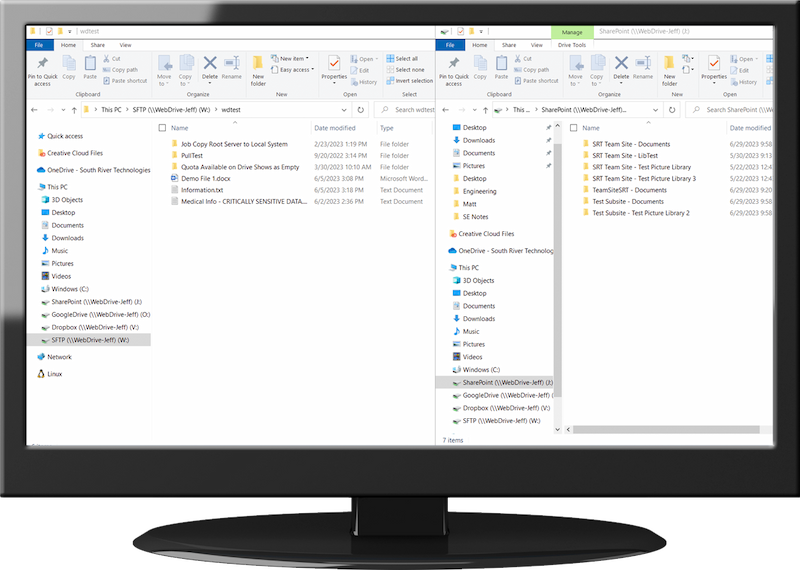
Access your work files from anywhere
Use WebDrive as an easy way to access corporate files while working from home, with simplified access to on-site SharePoint or popular NAS devices such as Synology. This enables your remote staff to access files as simply as if they were on your corporate network.
VPNs can be challenging and time consuming to manage, particularly with many employees working from home. Setting up a VPN can be quite complex- something that an individual remote user probably can’t do on their own, requiring the IT support team to spend significant time assisting remote users. WebDrive can also be used as a replacement for inefficient file access through VPNs, as a connection to SFTP and WebDAV servers. Thinking that now is a good time to move files to the cloud? WebDrive connects to all the popular cloud services through the convenience of a mapped drive letter – no new software for users to learn!
Added Benefits for Your Business Team
Map SharePoint as a Network Drive
Access SharePoint and OneDrive within the applications you already use. Easily edit Adobe, text, and all versions of Office.
Access the Cloud in a Click
Box, S3, Google Drive, Dropbox, OneDrive, and more can be accessed right from your Windows Explorer or Mac Finder.
Securely Connect to SFTP/FTP Servers
WebDrive is the FTP client you already know how to use. Map FTP and SFTP servers as a drive letter for productivity and convenience.
Preconfigure Settings and Distribute
Reduce installation and setup time for large implementations. Customize and push the settings out to all your users with no need to configure each PC.
Improve WebDAV Access
WebDrive is the WebDAV client with options to mount at startup and lock server files. It works the way the native Windows WebDAV redirector should work.
Your Synology NAS From Anywhere
WebDrive gives you remote access to shared files on your Synology NAS, allowing you to access your NAS as though it were a local device.
Effortless Drive Mapping for IT Teams: Simplifying Cloud & NAS Integration
Streamline your IT operations with powerful drive mapping solutions. From Synology NAS to Google Drive and SharePoint, our tools enable seamless integration, faster access, and remote configuration. Enjoy hassle-free setup with no VPN required and minimal user training, making your team’s workflow more efficient and secure.
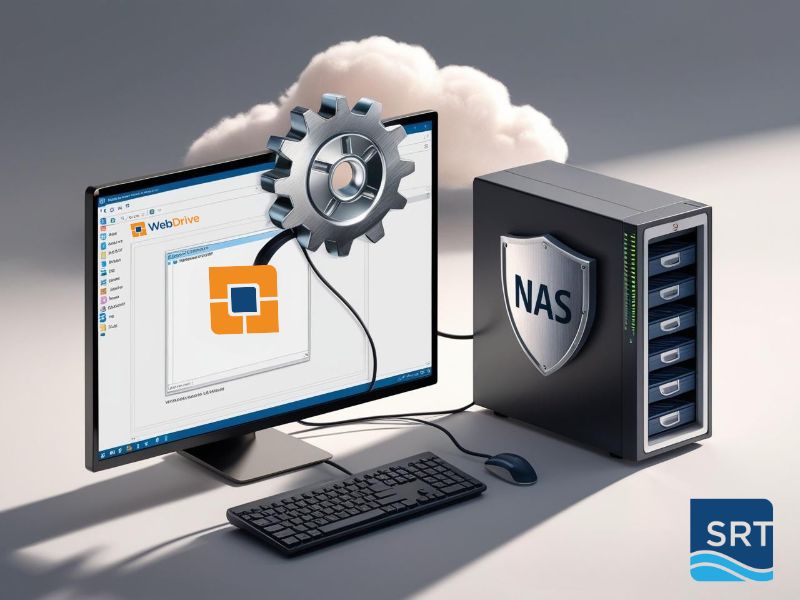
A Simpler Way to Use Synology
-
Map NAS folders as drives (W:) on any device
-
No VPN required
-
Faster, direct access
-
Compatible with Synology DSM
-
Remote setup and silent install supported
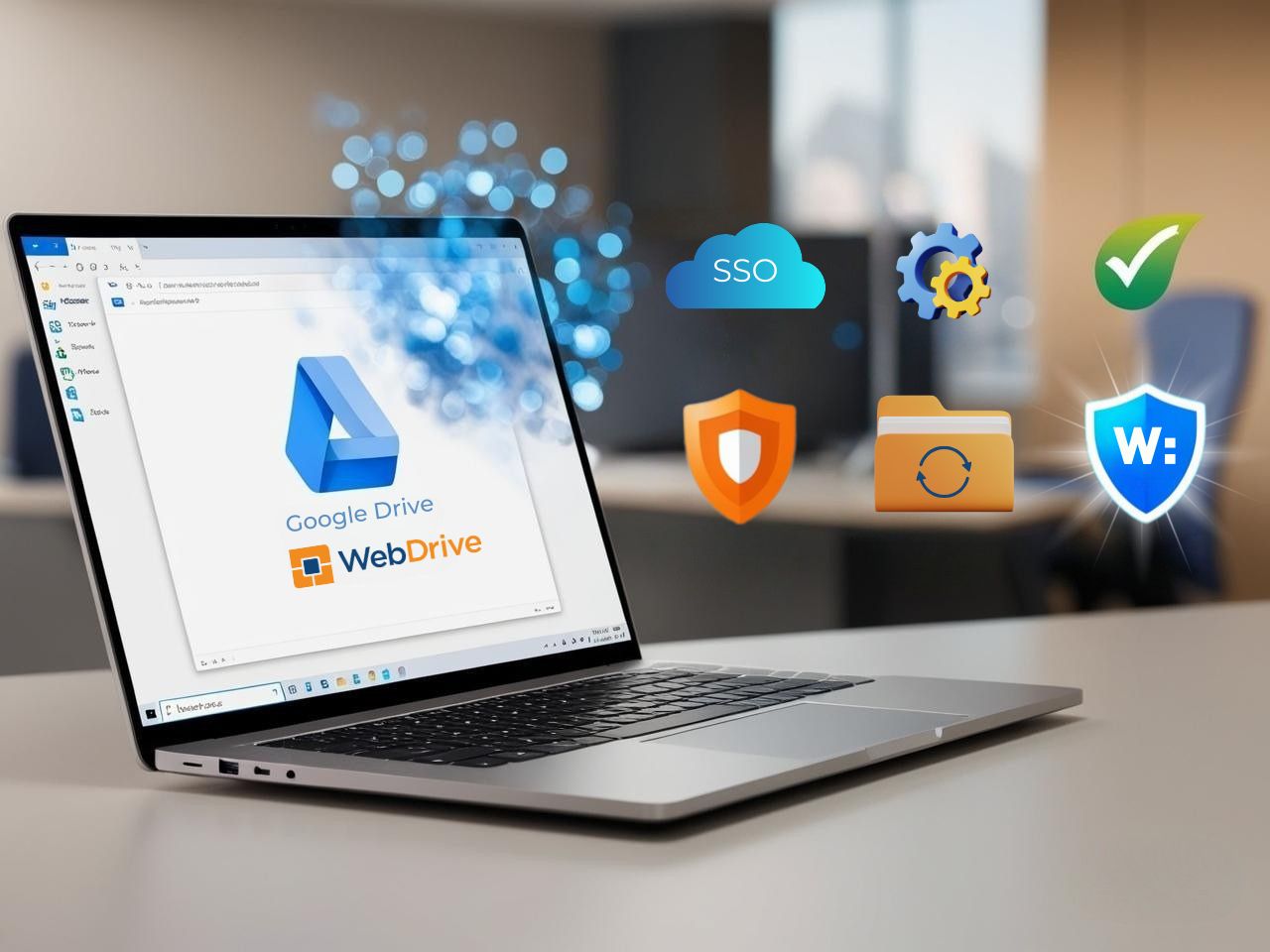
Why IT Teams Use WebDrive with Google Drive
-
Mount Google Drive as a drive letter (W:, G:, etc.)
-
Verified Google App integration
-
No user training required
-
MSI-ready for mass deployment
-
Remote configuration and silent install

Why IT Teams Use WebDrive with SharePoint
-
Map SharePoint Online as a local drive (e.g., W:)
-
Works seamlessly across on-prem, cloud, and hybrid
-
No user reconfiguration or client training needed
-
Compatible with MFA, SSO, and DLP policies
Companies that use Webdrive






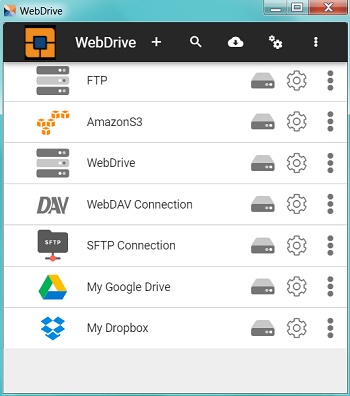
Supported Connectors
- SFTP
- WebDAV
- SharePoint/Office 365
- Google Drive
- Improved Google Drive Connector – Higher security and better performance when connecting to Google Drive.
- WebDrive Application has been Verified by Google with CASA (Cloud Application Security Assessment) Tier 2 independent security assessment.
- Google Cloud Storage
- IBM Storage
- Box.com
- Amazon S3
- DropBox
- OneDrive for Business
- OneDrive
- FTP/S
Advanced WebDrive Features
- Connect to your NAS storage (typically via a WebDAV connection)
- “Shared with me” folders – for Google Drive, OneDrive, and OneDrive for Business allow users to view/edit files and folders that other users have shared with them.
- FTP resume interrupted download – if connection has been lost during a file transfer, WebDrive can resume from the point where the connection was lost, rather than restarting from the beginning.
- File caching – WebDrive caches both file and directory listings so you can access your data faster, and it won’t be lost in the event of a failure. You configure file caching and directory listing settings, giving you complete control over how much space is used.
- File locking – when used with SharePoint Online and WebDAV servers. This prevents users from accidentally overwriting another user’s changes.
- Compression for faster transfers – WebDrive supports ZLIB compression on SFTP transfers for faster transfer speeds.
Automatically mounts at start up – so there is no need to reconnect each time you restart your computer. - Integrate PC scripts and programs with remote files. Use WebDrive to add remote file access to any PC script or program. Your script can just read from or write to any drive letter that is mapped by WebDrive. There’s no need to program the specific protocol commands.
- Map Windows drives to UNIX shares. WebDrive makes it easier to work with different platforms and environments.
System Requirements
Windows
Supported Operating Systems
WebDrive is supported on the 64-bit editions of Windows.
- Windows 11
- Windows 10
- Windows Server 2022
- Windows Server 2019
- Windows Server 2016 R2 editions
- Windows Server 2016, all editions
Minimum Hardware Requirements
- Pentium® class processor or better
- 4GB of RAM is required; 8GB of RAM is recommended
- Minimum 100MB of free disk space for product and cacheing
- Minimum SVGA (800×600) resolution
Mac
Supported Operating Systems
- OS 15 Sequoia
- OS 14 Sonoma
- OS 13 Ventura
- OS 12 Monterrey
- OS 11 Big Sur
- OS 10.13 High Sierra
- OS 10.12 Sierra
- OS 10.11 El Capitan
- OS 10.10 Yosemite
- OS 10.09 Mavericks
- OS 10.08 Mountain Lion
- OS 10.07 Lion
Minimum Hardware Requirements
- Disk Space: Minimum 100MB free disk space
- Other: WebDrive utilizes third party software as part of the product. The latest version of Fuse for Mac OS needs to be installed.
Ready to Buy Now? That’s great! We’re ready for you.
| Product Name | Purchase Link |
| WebDrive Individual License | Buy Individual Seat Now |
| WebDrive 10 Seat License | Buy 10 Seat Now |
| WebDrive 25 Seat License | Buy 25 Seat Now |
| WebDrive 50 Seat License | Buy 50 Seat Now |
| WebDrive 100 Seat License | Buy 100 Seat Now |
| WebDrive 250 Seat License | Buy 250 Seat Now |
| WebDrive >500 Seat License | Contact Sales |
| WebDrive Educational License | Contact Sales |
All WebDrive licenses are a one-time purchase and include 1-year Maintenance and Support.
Maintenance and Support is renewed annually.
Need to try before you buy? No problem! We understand.